
Connect your IDE
Prefer a scoped key from a job pack — few tools, then paste MCP config and agent instructions.
Use a scoped MCP key
After installing a job pack, use Connect IDE (or Settings → MCP keys). Prefer a key with allowed tools listed — your agent should only see that pack's tools, not the whole catalog.
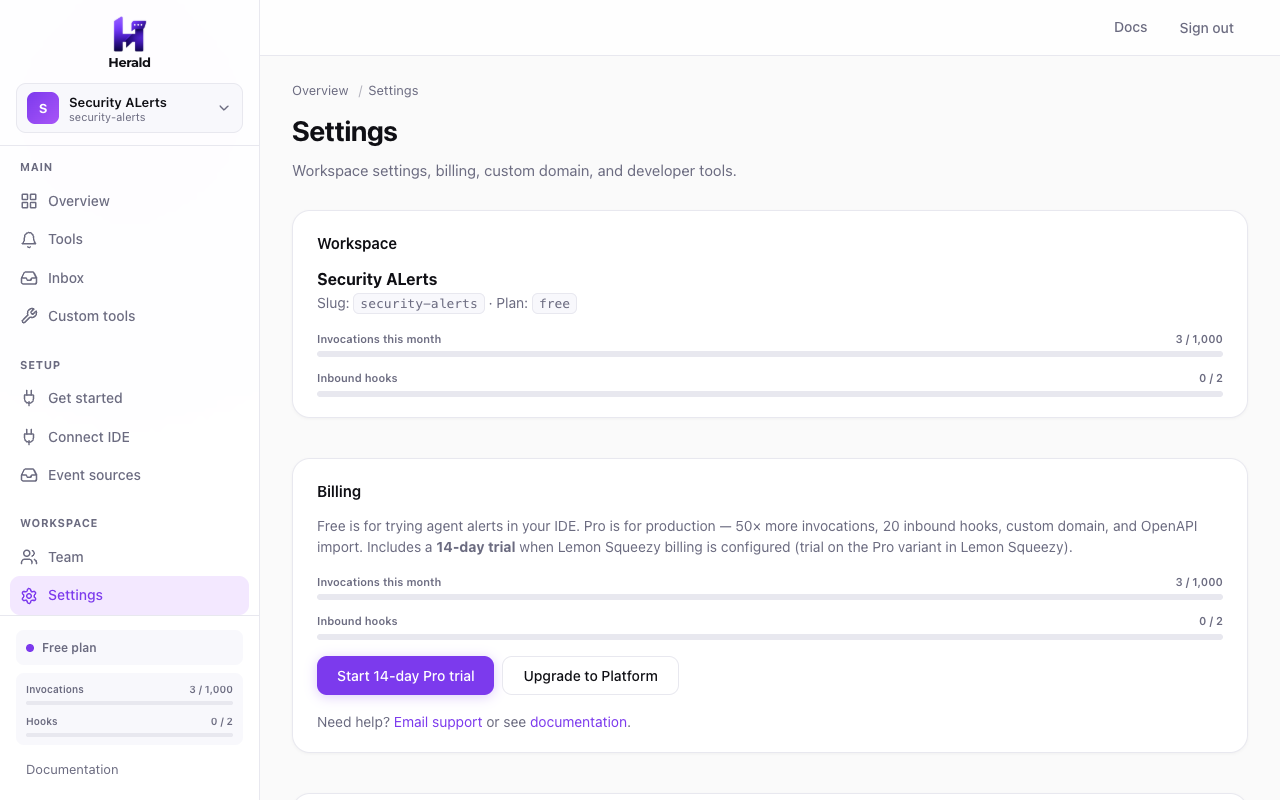
Keys are shown once at creation — rotate anytime. Paste MCP config into your client
MCP config and agent instructions go in different places. Paste the JSON where your client registers MCP servers; paste the instructions where the agent reads rules or automation prompts.Use Herald tools while coding in Cursor chat or Agent mode.
1. MCP config
- Open Cursor Settings → MCP (or create .cursor/mcp.json in your project)
- Paste the MCP config JSON below
- Reload MCP servers (or restart Cursor)
2. Agent instructions
- Open Cursor Settings → Rules → User Rules (or add .cursor/rules/herald.mdc with alwaysApply: true)
- Paste the agent instructions below
- Ask the agent to send a test alert or list recent inbox events
MCP config
File:
.cursor/mcp.json or Cursor Settings → MCP{ "mcpServers": { "herald": { "url": "https://gateway.herald.services/v1/your-workspace/mcp", "headers": { "Authorization": "Bearer mcp_live_YOUR_KEY_HERE" } } } }Agent instructions
# Herald — Cursor Agent

For notifications and escalations, use Herald MCP tools.
Always include the most important details first. Keep Discord messages under 2000 characters.

## When to use which Herald surface

- **Alert channel tools** — Notify people (Discord, Slack, Telegram, email, SMS, PagerDuty, etc.). Prefer structured alert tools (*_security_alert, *_web3_alert, *_ci_alert, …) when severity and context matter; use plain send/message tools for simple updates.
- **Inbox tools** — Read inbound webhooks (chain monitors, Stripe, GitHub Actions, Sentry, etc.) with `list_recent_events` / `get_event`, then decide whether to alert or call a custom API tool.
- **Custom / product / automation tools** — Call your HTTP APIs, GitHub/Linear, Zapier/Make, Notion, etc. Use the exact tool name and required args listed below.

## Inbox (inbound events)

- `list_recent_events` — optional `limit` (default 10, max 50). Lists recent webhook events (Alchemy, Tenderly, Stripe, GitHub Actions, Sentry, …).
- `get_event` — required `event_id` from list_recent_events. Fetches one event by ID.

Use inbox tools first when the user asks what happened on-chain or from a monitor; then call an alert or custom tool if action is needed.

## Situational playbooks

### Security findings

If a critical bug or security issue is found, call a `*_send_security_alert` tool with:
- severity: critical | high | medium | low
- title, summary
- file_path, pr_link (use "N/A" if none)
- severity_color (Discord embeds): critical=15158332, high=15105570, medium=16776960, low=3447003

### Web3 / on-chain

If suspicious on-chain activity is detected, prefer structured Web3 tools:
- EVM: `discord_send_web3_alert`, `slack_send_web3_alert`, `telegram_send_web3_alert`, or `pagerduty_trigger_web3_incident`
  Args typically: severity, chain, tx_hash, block, title, summary, explorer_url (+ severity_color (Discord embeds): critical=15158332, high=15105570, medium=16776960, low=3447003 for Discord)
- Solana: `discord_send_solana_alert` / `slack_send_solana_alert` with chain, signature, slot, title, summary, explorer_url

Read inbox events with `list_recent_events` before alerting when monitors feed Herald.

### CI / deploy failures

For CI or deploy failures, call `*_send_ci_alert` with title, summary, provider, repo_or_project, workflow_or_env, status, run_url, severity.

### Billing / Stripe

For payment or billing incidents, call `*_send_stripe_alert` with title, summary, event_type, customer_or_account, amount_or_plan, severity, and dashboard/url context when available.

### Errors / Sentry

For error spikes or incidents from Sentry-style monitors, call `*_send_sentry_alert` with title, summary, project, environment, issue_url, count/severity fields as defined by the tool schema.

### On-call escalation

- `pagerduty_trigger_incident` — summary, severity (critical|error|warning|info), details; optional dedup_key
- `opsgenie_create_alert` — message and priority/details per schema
- `statuspage_create_incident` — name, status, and body fields per schema

Escalate only when impact is real or the user asks to page on-call.

### General team chat / push

For simple notifications use the plain channel tools (`discord_send_notification`, `slack_send_message`, `telegram_send_message`, Teams / Google Chat / Mattermost / Rocket.Chat, ntfy, Gotify, Pushover). Keep Discord content under 2000 characters. Put the most important details first.

### Issues / project tracking

Create or comment on issues with `github_create_issue`, `github_add_comment`, or `linear_create_issue` using the required fields from each tool schema (title/body/repo or team identifiers).

### Product / messaging APIs

Use the configured product tools (Resend, Twilio, Notion, Airtable, Zendesk, Intercom, Cal.com, WordPress, …) exactly as named below. Fill every required argument.

### Automation bridges

Forward events to Zapier / Make / IFTTT / generic webhooks with the payloads defined on those tools. Prefer structured JSON matching the tool’s input schema.

## Available Herald template tools (reference)

After you add templates in the dashboard, tools like these appear over MCP:

- **security**: discord_send_security_alert, telegram_send_security_alert
- **web3**: discord_send_web3_alert, slack_send_web3_alert, telegram_send_web3_alert, pagerduty_trigger_web3_incident, discord_send_solana_alert, slack_send_solana_alert
- **stripe**: discord_send_stripe_alert, slack_send_stripe_alert
- **ci**: discord_send_ci_alert, slack_send_ci_alert
- **observability**: discord_send_sentry_alert, slack_send_sentry_alert
- **team-chat**: discord_send_notification, slack_send_message, telegram_send_message, teams_send_message, google_chat_send_message, mattermost_send_message, rocketchat_send_message
- **mobile**: ntfy_send_notification, gotify_send_notification, pushover_send_notification
- **ops**: pagerduty_trigger_incident
- **automation**: zapier_send_event, make_send_event, ifttt_send_event, json_webhook_send
- **developer**: github_create_issue, github_add_comment, linear_create_issue
- **product**: wordpress_create_draft, resend_send_email, opsgenie_create_alert, statuspage_create_incident, notion_create_page, airtable_create_record, twilio_send_sms, zendesk_create_ticket, intercom_create_conversation, calcom_create_booking

Custom HTTP tools use whatever name you configured under Custom tools.

## Rules

- Prefer tools listed for this workspace over inventing tool names.
- Fill every required argument; use "N/A" only when a field is optional-or-placeholder and unknown.
- Do not invent secrets or webhook URLs — Herald already stores them on the tool.
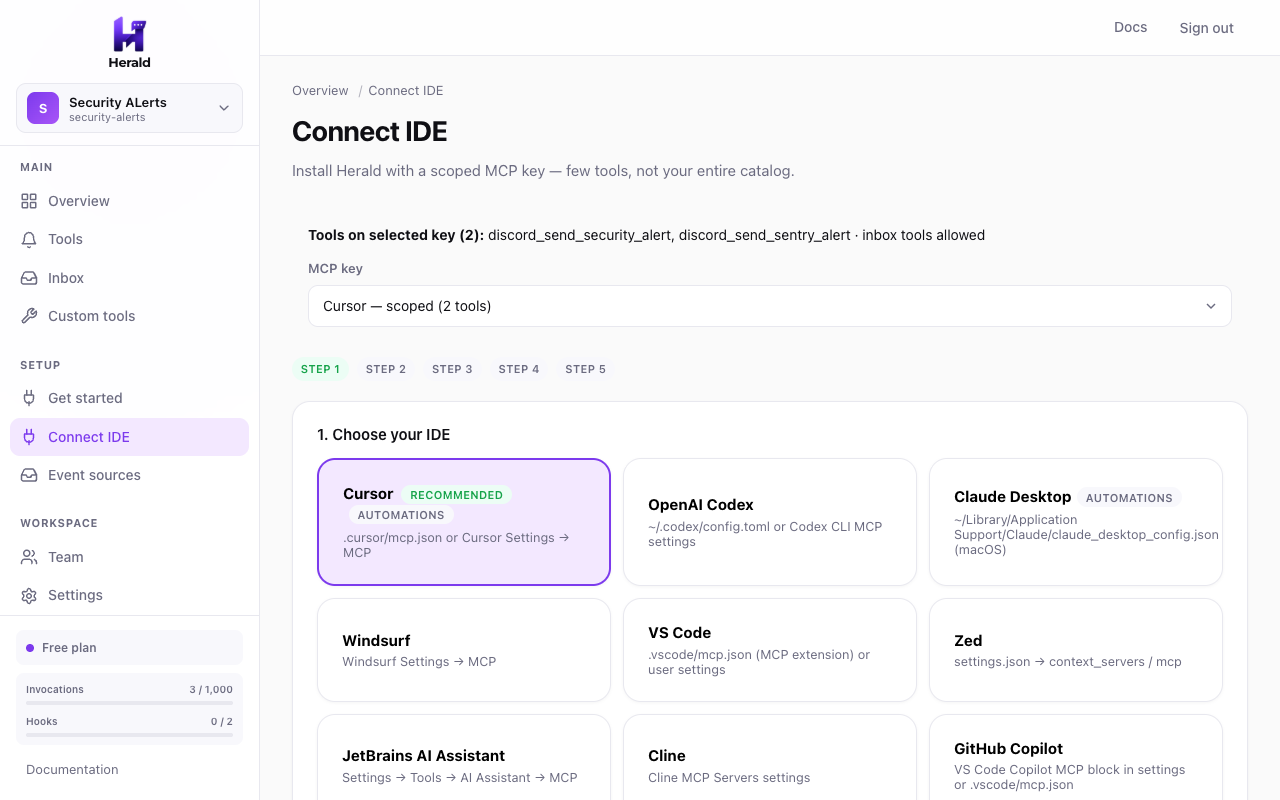
The dashboard Connect flow uses your live URL and key. Paste agent instructions
Choose Local Agent or Automations — instructions go in User Rules (local) or the automation prompt (background). MCP config and instructions are separate paste targets.
MCP config and agent instructions go in different places. Paste the JSON where your client registers MCP servers; paste the instructions where the agent reads rules or automation prompts.Use Herald tools while coding in Cursor chat or Agent mode.
1. MCP config
- Open Cursor Settings → MCP (or create .cursor/mcp.json in your project)
- Paste the MCP config JSON below
- Reload MCP servers (or restart Cursor)
2. Agent instructions
- Open Cursor Settings → Rules → User Rules (or add .cursor/rules/herald.mdc with alwaysApply: true)
- Paste the agent instructions below
- Ask the agent to send a test alert or list recent inbox events
MCP config
File:
.cursor/mcp.json or Cursor Settings → MCP{ "mcpServers": { "herald": { "url": "https://gateway.herald.services/v1/your-workspace/mcp", "headers": { "Authorization": "Bearer mcp_live_YOUR_KEY_HERE" } } } }Agent instructions
# Herald — Cursor Agent

For notifications and escalations, use Herald MCP tools.
Always include the most important details first. Keep Discord messages under 2000 characters.

## When to use which Herald surface

- **Alert channel tools** — Notify people (Discord, Slack, Telegram, email, SMS, PagerDuty, etc.). Prefer structured alert tools (*_security_alert, *_web3_alert, *_ci_alert, …) when severity and context matter; use plain send/message tools for simple updates.
- **Inbox tools** — Read inbound webhooks (chain monitors, Stripe, GitHub Actions, Sentry, etc.) with `list_recent_events` / `get_event`, then decide whether to alert or call a custom API tool.
- **Custom / product / automation tools** — Call your HTTP APIs, GitHub/Linear, Zapier/Make, Notion, etc. Use the exact tool name and required args listed below.

## Inbox (inbound events)

- `list_recent_events` — optional `limit` (default 10, max 50). Lists recent webhook events (Alchemy, Tenderly, Stripe, GitHub Actions, Sentry, …).
- `get_event` — required `event_id` from list_recent_events. Fetches one event by ID.

Use inbox tools first when the user asks what happened on-chain or from a monitor; then call an alert or custom tool if action is needed.

## Situational playbooks

### Security findings

If a critical bug or security issue is found, call a `*_send_security_alert` tool with:
- severity: critical | high | medium | low
- title, summary
- file_path, pr_link (use "N/A" if none)
- severity_color (Discord embeds): critical=15158332, high=15105570, medium=16776960, low=3447003

### Web3 / on-chain

If suspicious on-chain activity is detected, prefer structured Web3 tools:
- EVM: `discord_send_web3_alert`, `slack_send_web3_alert`, `telegram_send_web3_alert`, or `pagerduty_trigger_web3_incident`
  Args typically: severity, chain, tx_hash, block, title, summary, explorer_url (+ severity_color (Discord embeds): critical=15158332, high=15105570, medium=16776960, low=3447003 for Discord)
- Solana: `discord_send_solana_alert` / `slack_send_solana_alert` with chain, signature, slot, title, summary, explorer_url

Read inbox events with `list_recent_events` before alerting when monitors feed Herald.

### CI / deploy failures

For CI or deploy failures, call `*_send_ci_alert` with title, summary, provider, repo_or_project, workflow_or_env, status, run_url, severity.

### Billing / Stripe

For payment or billing incidents, call `*_send_stripe_alert` with title, summary, event_type, customer_or_account, amount_or_plan, severity, and dashboard/url context when available.

### Errors / Sentry

For error spikes or incidents from Sentry-style monitors, call `*_send_sentry_alert` with title, summary, project, environment, issue_url, count/severity fields as defined by the tool schema.

### On-call escalation

- `pagerduty_trigger_incident` — summary, severity (critical|error|warning|info), details; optional dedup_key
- `opsgenie_create_alert` — message and priority/details per schema
- `statuspage_create_incident` — name, status, and body fields per schema

Escalate only when impact is real or the user asks to page on-call.

### General team chat / push

For simple notifications use the plain channel tools (`discord_send_notification`, `slack_send_message`, `telegram_send_message`, Teams / Google Chat / Mattermost / Rocket.Chat, ntfy, Gotify, Pushover). Keep Discord content under 2000 characters. Put the most important details first.

### Issues / project tracking

Create or comment on issues with `github_create_issue`, `github_add_comment`, or `linear_create_issue` using the required fields from each tool schema (title/body/repo or team identifiers).

### Product / messaging APIs

Use the configured product tools (Resend, Twilio, Notion, Airtable, Zendesk, Intercom, Cal.com, WordPress, …) exactly as named below. Fill every required argument.

### Automation bridges

Forward events to Zapier / Make / IFTTT / generic webhooks with the payloads defined on those tools. Prefer structured JSON matching the tool’s input schema.

## Available Herald template tools (reference)

After you add templates in the dashboard, tools like these appear over MCP:

- **security**: discord_send_security_alert, telegram_send_security_alert
- **web3**: discord_send_web3_alert, slack_send_web3_alert, telegram_send_web3_alert, pagerduty_trigger_web3_incident, discord_send_solana_alert, slack_send_solana_alert
- **stripe**: discord_send_stripe_alert, slack_send_stripe_alert
- **ci**: discord_send_ci_alert, slack_send_ci_alert
- **observability**: discord_send_sentry_alert, slack_send_sentry_alert
- **team-chat**: discord_send_notification, slack_send_message, telegram_send_message, teams_send_message, google_chat_send_message, mattermost_send_message, rocketchat_send_message
- **mobile**: ntfy_send_notification, gotify_send_notification, pushover_send_notification
- **ops**: pagerduty_trigger_incident
- **automation**: zapier_send_event, make_send_event, ifttt_send_event, json_webhook_send
- **developer**: github_create_issue, github_add_comment, linear_create_issue
- **product**: wordpress_create_draft, resend_send_email, opsgenie_create_alert, statuspage_create_incident, notion_create_page, airtable_create_record, twilio_send_sms, zendesk_create_ticket, intercom_create_conversation, calcom_create_booking

Custom HTTP tools use whatever name you configured under Custom tools.

## Rules

- Prefer tools listed for this workspace over inventing tool names.
- Fill every required argument; use "N/A" only when a field is optional-or-placeholder and unknown.
- Do not invent secrets or webhook URLs — Herald already stores them on the tool.
Replace the demo URL and key with values from your workspace Connect IDE wizard.
Optional: Cursor Automations
For GitHub PR review, CI failure alerts, or scheduled ops, use Cursor Automations + Herald. Attach Herald under Tools → MCP server on the automation — not only in
.cursor/mcp.json.Test from the agent
- Reload MCP servers in your IDE (local mode)
- Confirm Herald tools appear
- Ask the agent to send a test alert or list recent events
All clients: IDE setup reference